| SYSTEM INFORMATION | |
|---|---|
| OS type and version | Debian 12 |
| Webmin version | 2.610 |
| Virtualmin version | 7.50.2 GPL |
| Webserver version | Nginx version 1.22.1 |
| Related packages | Dovecot |
After reinstall my Virtualmin MAIL Server, I had my first experience in restore mails using the Virtualmin tools.
Because the way Virtualmin works to restore emails, that need to restore Full Users + Full Home directory, that I don’t like too much, since I just want to restore few emails and few users (not all), I decided to upload the emails myself via FTP.
I had some pain a head issues but I sorted it out. I’ll show the bugs I had and the steps to fix it:
Backup first before format your VPS:
Go to Virtualmin → Backup and Restore → Backup Virtual Servers
- Select only one virtual server you want to backup (to have organized separated files - my opinion)
- On “Features to backup” just check these two options: “Server’s home directory and web pages” and “Mail/FTP users and mail aliases”.
- On “Backup destinations” select “Download via browser”.
- Click on “Backup Now” and download the generated link.
Go to the file downloaded, extract it. Then after extract the inside file “example.com_dir.tar” - where are the server directories backup.
Go to this extracted folder with your FTP Program (I’m using Filezilla).
Virtualmin uses two Maildir folders structures to store emails:
- /home/server_name/Maildir
- /home/server_name/homes/info/Maildir
In my case, I only want to restore 2 folders in a specific mail user called “info”: “INBOX” and “Sent” folders. All the rest I want from the fresh new Virtualmin installation.
So the first folder to copy content from the backup to the server is:
/home/server_name/homes/info/Maildir/cur
The second folder is:
/home/server_name/homes/info/Maildir/.Sent/cur
After this my email client (Evolution on Linux) start to recover the emails.
I got this error every time I recovered a user/mail (I did 3 times and happened to me 3 times):
Some blank(corrupted) emails (not all), that can’t be deleted (there is a warn “this email can’t be moved…”) and if you do will break the Mail client (or lost this email if you succeeded):
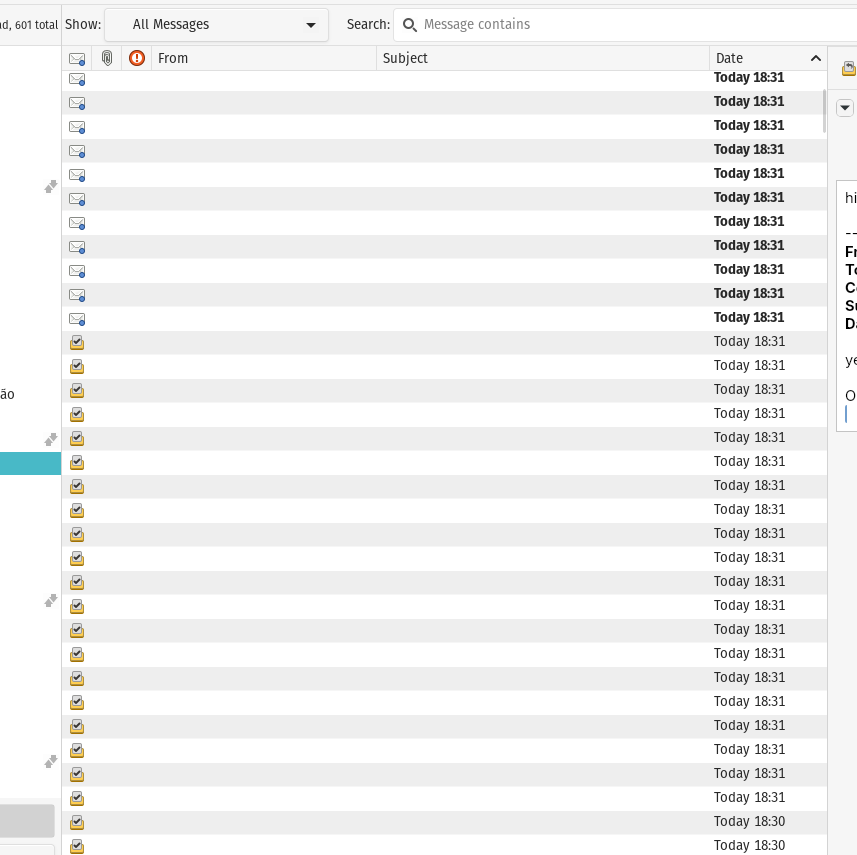

- I deleted the Email client cache in my computer, but the issue persisted.
How to fix it:
1) Rename the folders:
/home/server_name/homes/info/Maildir/cur
/home/server_name/homes/info/Maildir/.Sent/cur
To:
/home/server_name/homes/info/Maildir/-cur
/home/server_name/homes/info/Maildir/.Sent/-cur
2) Change the “-cur” folder’s files permission to 644 (only files… folder keep 700)
chmod 644 /home/server_name/homes/info/Maildir/-cur/*
chmod 644 /home/server_name/homes/info/Maildir/.Sent/-cur/*
3) Close and Open Mail Client
After this refresh Maildir folders on FTP.
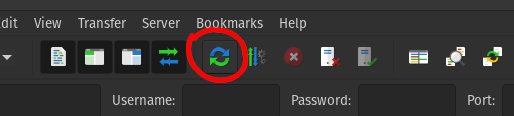
So new “cur” folders will be generated in Maildir.
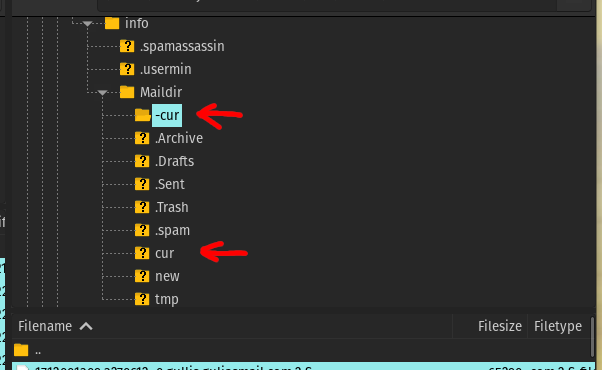
4) Move all the files from “-cur” folder to “cur” folder
Do this for both “cur” folders (INBOX and Sent).
Email client will start to recover all emails with no issue.
CANCEL THIS STEP: 5) Move back permission to all files on “cur” folders to 600
CANCEL THIS STEP: chmod 600 /home/server_name/homes/info/Maildir/cur/*
CANCEL THIS STEP: chmod 600 /home/server_name/homes/info/Maildir/.Sent/cur/*
EDIT: Don’t back to 600. It makes emails to not fetch on mail client on the next day. When I back the restored emails to 644, all the emails fetched again properly on Mail Client. The new generated emails came in 600. I just left it the way it is and it is working fine until now.
That’s it. Have a great day!