| SYSTEM INFORMATION | |
|---|---|
| OS type and version | Ubuntu Server 24.04 (Azure Image) |
| Virtualmin version | virtualmin edition: GPL; virtualmin version: 8.1.0.gpl-1; webmin version: 2.630 |
I’ve had a system on azure running virtualmin, and everything has been fine, it’s been hosting websites happily and everything is well.
Virtualmin told me there were some updates, which isn’t a virtualmin thing but an Ubuntu thing, but I installed them, and then rebooted.
The VM never came back up so I connected to the azure portal and serial’d in; the server was up and running, but I could no longer reach the gateway, I cannot ping 8.8.8.8 or external resources, I cannot resolve anything to DNS, and in general it’s like the network just went dark. I don’t even have traceroute installed, and since I can’t install packages, I’m stuck.
Ultimately I think this is an Ubuntu issue and not a virtualmin or azure issue, but that being said, with just the tools on the system, I’m looking for guidance troubleshooting how to get the system back up. I have local backups, but I can’t even download them at this point. I’m going to paste some system information below; it’s probably not relevant for virtualmin-specific troubleshooting, but maybe someone will see the issue I’m not seeing. Thanks in advance for any help.
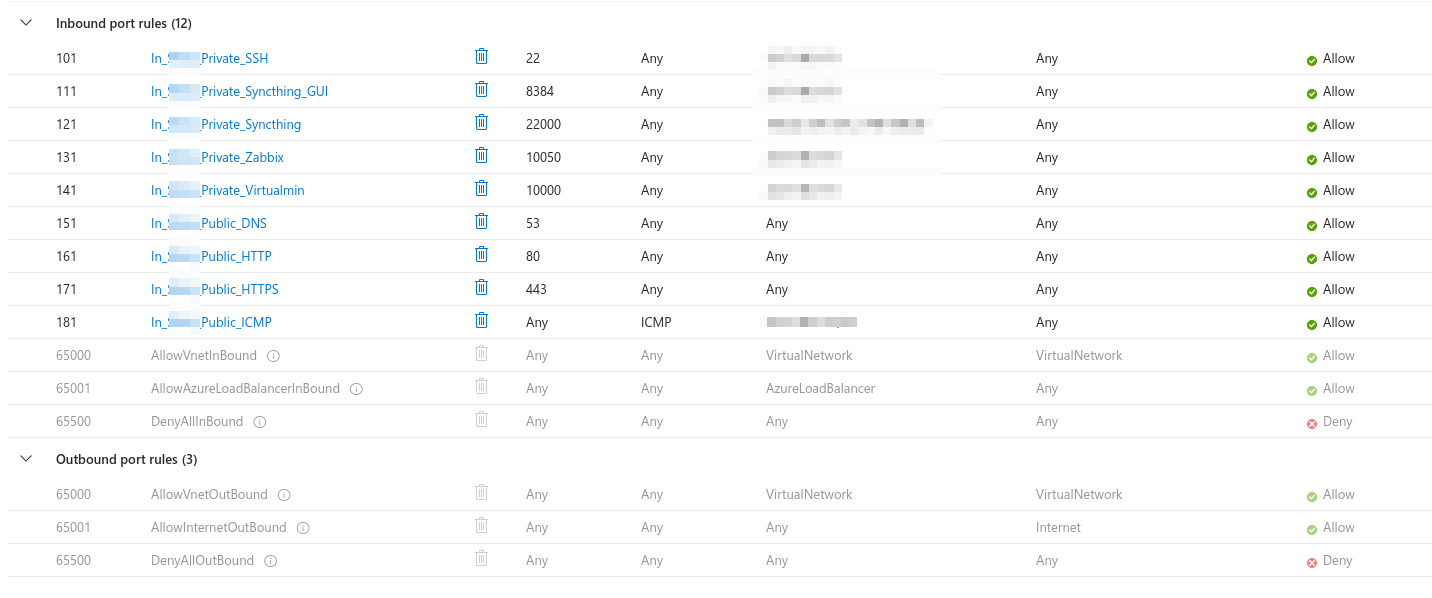
NSG Rules:
root@sr66-azr-01:~# ip a
1: lo: <LOOPBACK,UP,LOWER_UP> mtu 65536 qdisc noqueue state UNKNOWN group default qlen 1000
    link/loopback 00:00:00:00:00:00 brd 00:00:00:00:00:00
    inet 127.0.0.1/8 scope host lo
       valid_lft forever preferred_lft forever
2: eth0: <BROADCAST,MULTICAST,UP,LOWER_UP> mtu 1500 qdisc mq state UP group default qlen 1000
    link/ether 00:0d:3a:f9:9f:c8 brd ff:ff:ff:ff:ff:ff
    inet 10.8.2.10/24 metric 100 brd 10.8.2.255 scope global eth0
       valid_lft forever preferred_lft forever
3: enP45949s1: <BROADCAST,MULTICAST,SLAVE,UP,LOWER_UP> mtu 1500 qdisc mq master eth0 state UP group default qlen 1000
    link/ether 00:0d:3a:f9:9f:c8 brd ff:ff:ff:ff:ff:ff
    altname enP45949p0s2
root@sr66-azr-01:~# ip route show
default via 10.8.2.1 dev eth0 proto dhcp src 10.8.2.10 metric 100
10.8.2.0/24 dev eth0 proto kernel scope link src 10.8.2.10 metric 100
10.8.2.1 dev eth0 proto dhcp scope link src 10.8.2.10 metric 100
168.63.129.16 via 10.8.2.1 dev eth0 proto dhcp src 10.8.2.10 metric 100
169.254.169.254 via 10.8.2.1 dev eth0 proto dhcp src 10.8.2.10 metric 100
root@sr66-azr-01:~# ufw status
Status: inactive
root@sr66-azr-01:~# iptables -L
Chain INPUT (policy DROP)
target     prot opt source               destination

Chain FORWARD (policy DROP)
target     prot opt source               destination

Chain OUTPUT (policy ACCEPT)
target     prot opt source               destination
root@sr66-azr-01:~# netplan ip leases eth0
# This is private data. Do not parse.
ADDRESS=10.8.2.10
NETMASK=255.255.255.0
ROUTER=10.8.2.1
SERVER_ADDRESS=168.63.129.16
NEXT_SERVER=168.63.129.16
T1=infinity
T2=infinity
LIFETIME=infinity
DNS=168.63.129.16
DOMAINNAME=xoqvgsutm40ezkntcjqniuo3se.xx.internal.cloudapp.net
CLASSLESS_ROUTES=0.0.0.0/0,10.8.2.1 168.63.129.16/32,10.8.2.1 169.254.169.254/32,10.8.2.1
CLIENTID=ffd3fe713800020000ab11ce9a375f59b5da6b
OPTION_245=a83f8110