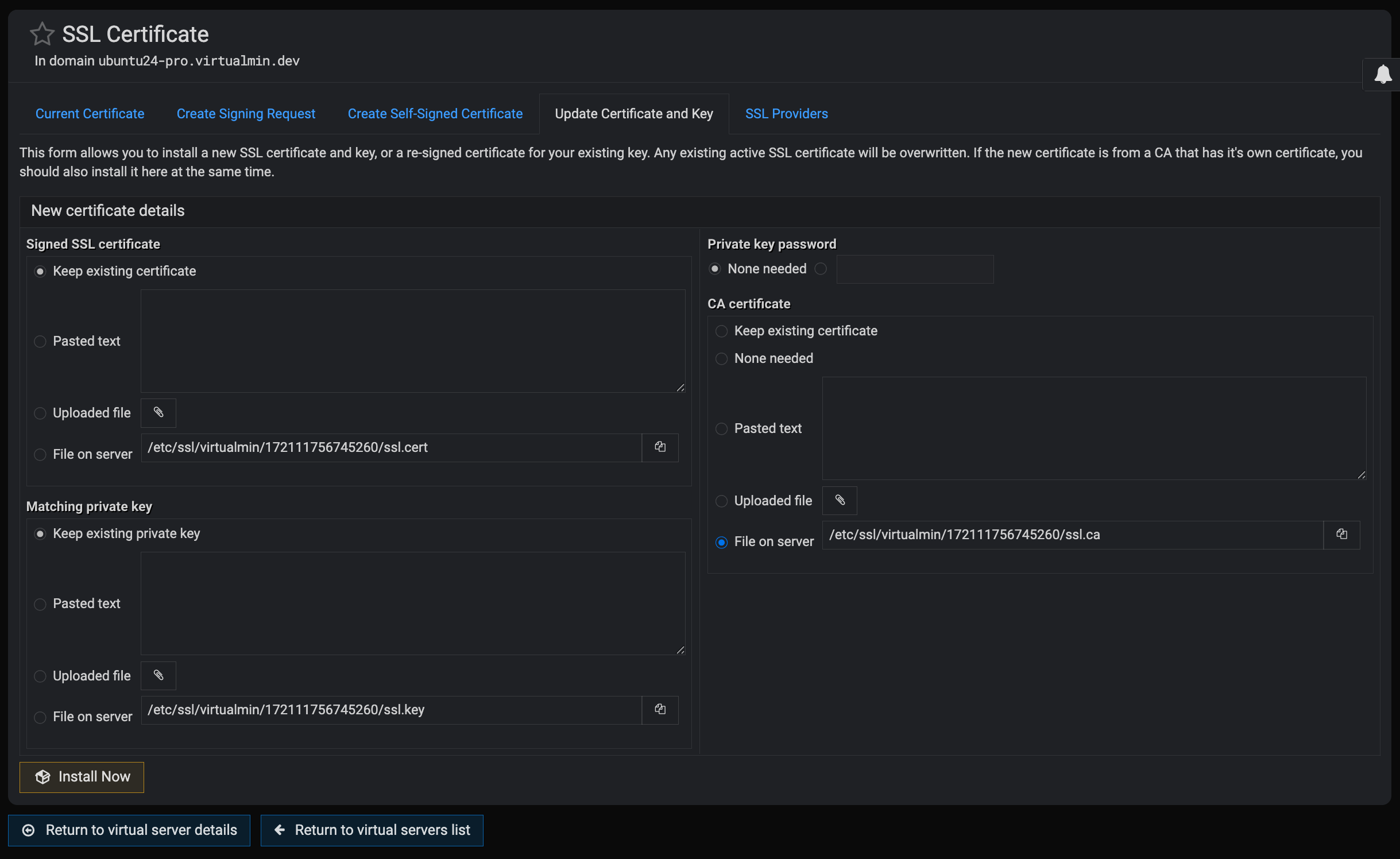
When attempting to install an SSL certificate using the “File on server” option in the SSL Setup page, the CA certificate file path is not saved after submitting the form. The .key file loads correctly, but the ca.cer file clears out after clicking Install Now.
Steps to Reproduce
Go to:
2.Virtualmin → Manage Virtual Server → Setup SSL Certificate*
Under Private key, choose: File on server
Path used:
/home/site/.acme.sh/site.com_ecc/site.com.key
Under CA certificate, choose: File on server
Path used:
/home/site/.acme.sh/site.com_ecc/ca.cer
Click Install Now.
Expected Behaviour
The SSL certificate should be installed using the provided ca.cer file, and the form should retain the selected CA certificate path after installation.
Actual Behaviour
The installation runs, but Virtualmin clears the CA certificate field.
After the page reloads, the CA certificate text area is empty.
SSL installation installs complete, but a missing CA chain.
Hint:
check create and update events, i.e when installing SSL Cert for the first time and when updating an exisitng SSL cert
@Jamie, I can also see this bug. I remember you were fixing a similar issue with the cert and key some time ago, but the CA hasn’t been fixed yet. If you go to “Manage Virtual Server ⇾ Setup SSL Certificate / Update Certificate and Key” tab, select “File on server” for the “CA certificate” section, and just hit Save, even if the file is already set, e.g.:
 File on server